A screen and four buttons.
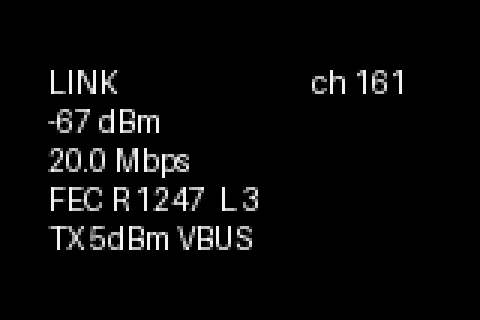
OLED STATUS
One status page. Repainted every 0.7 seconds.
The OLED shows the node name, its LAN address, the radio link with RSSI, and one status line: a pairing countdown, the mesh role, uplink up, or ready. It runs on a 0.96 inch SSD1306 or a 1.3 inch SH1106 over I2C, beside any touch panel or HDMI screen.
┌──────────────────────┐
│ ados-gs-a4b2         │
│ 192.168.1.42         │
│ link up -52dBm       │
│ role: receiver       │
└──────────────────────┘
- Panel
- SSD1306 / SH1106
- Interface
- I2C
- Address
- 0x3C, 0x3D
- Resolution
- 128 x 64 or 128 x 32
- Buttons
- 4 tactile
- Button GPIO
- 5, 6, 13, 19
BUTTONS
Four buttons. Two layers.
A short press navigates. A press held for two seconds fires the long action when you let go. Hold past six seconds and the press is dropped, so a change of mind costs nothing. The mapping below is the default and can be changed in the agent config.
Short press
Next tab on the touch panel, wrapping round the bottom bar.
Long press
Toggle the panel backlight.
Short press
Open the uplink page: cloud link, LTE signal, or the wired path.
Long press
Open the pair-drone page.
Short press
Confirm the open screen's primary action.
Long press
Open the pair-drone page.
Short press
Back. Closes the open detail page.
Long press
Open the More menu.
NAVIGATION
Flat on purpose.
The buttons drive the same pages a finger does on the touch panel: five tabs along the bottom, a detail page behind each dashboard tile, and a short More menu. Anything that restarts or unpairs takes two taps.
Tabs (B1 steps through)
 ├─ Dashboard
 │   ├─ Radio link → TX power
 │   ├─ Drone → detail
 │   ├─ Mesh → role picker
 │   └─ Uplink → detail
 ├─ Video
 ├─ Settings
 ├─ Link stats
 └─ Channel hops

More (B4 long press)
 ├─ Pair drone
 ├─ Diagnostics
 ├─ Restart agent (2 taps)
 └─ About
MESH PAIRING
A countdown you can read across the field.
When a receiver opens its accept window, the OLED status line turns into a countdown. The window lasts 60 seconds by default and can be set from 5 to 300. The invite is sealed to the relay's X25519 key with ChaCha20-Poly1305 and expires 120 seconds after it is issued.
┌──────────────────────┐
│ ados-gs-a4b2         │
│ 192.168.1.42         │
│ link up -52dBm       │
│ PAIRING 42s          │
└──────────────────────┘
Open the window, request the join and approve it from the Mesh tab in Mission Control or the node's local API. The OLED keeps everyone at the receiver informed while the window is open.
Distributed receiveGRACEFUL DEGRADATION
Missing hardware is not an error.
The OLED service probes 0x3C and 0x3D and exits cleanly when nothing answers. A board without a GPIO chip skips the button reader. Every setting stays reachable from the setup webapp and Mission Control.
| Item | OLED status | Button navigation | Webapp and Mission Control |
|---|---|---|---|
| Full front panel | |||
| No OLED | |||
| No buttons | |||
| No touch panel | No pages to drive |
Full front panel
OLED status, Button navigation, Webapp and Mission Control
No OLED
Button navigation, Webapp and Mission Control
No oled status
No buttons
OLED status, Webapp and Mission Control
No button navigation
No touch panel
OLED status, Button navigation (No pages to drive), Webapp and Mission Control
A screen and four buttons. Enough for the field.
Wiring, the button mapping, and the panel pages are covered in the public docs.
Physical UI docs