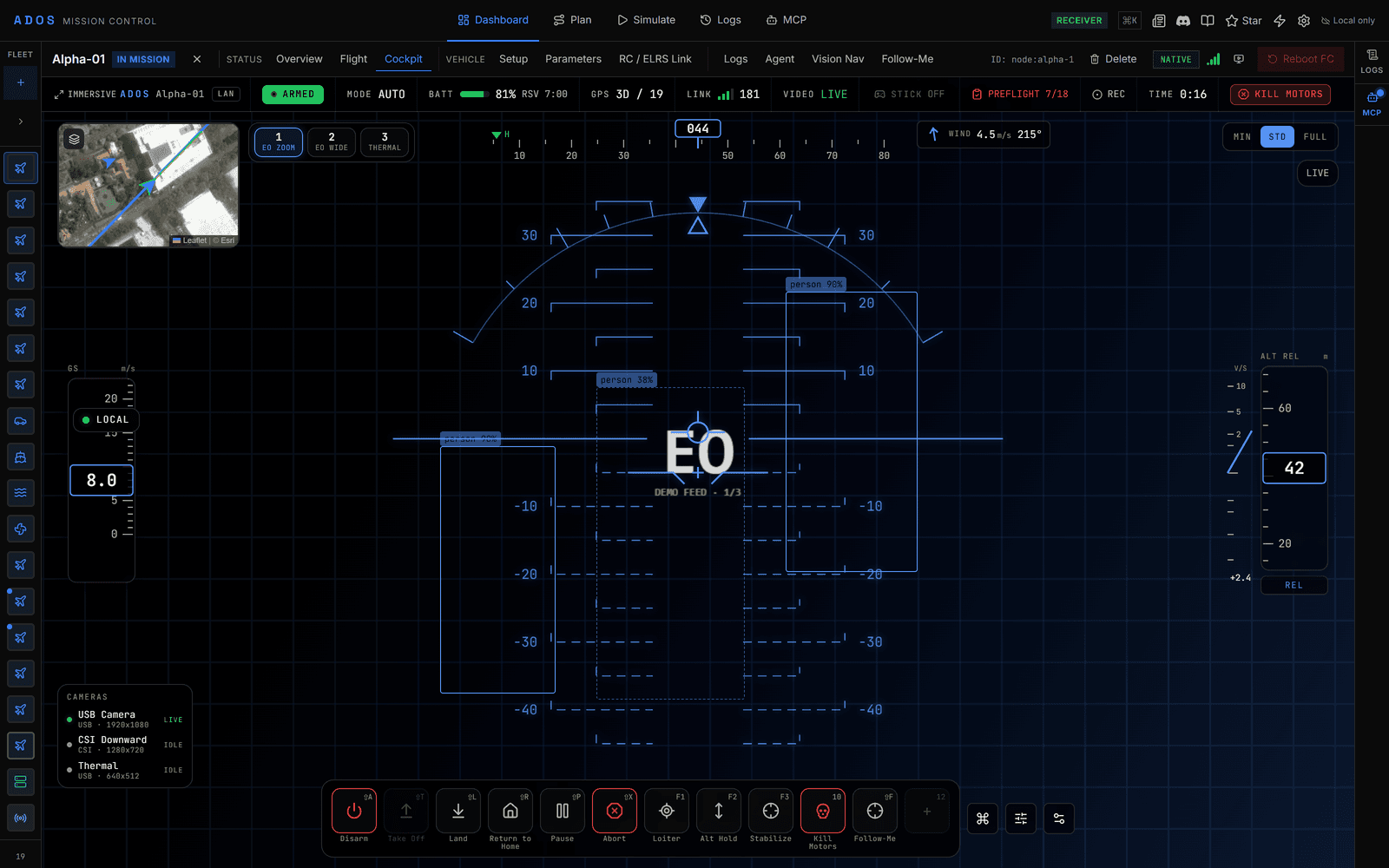
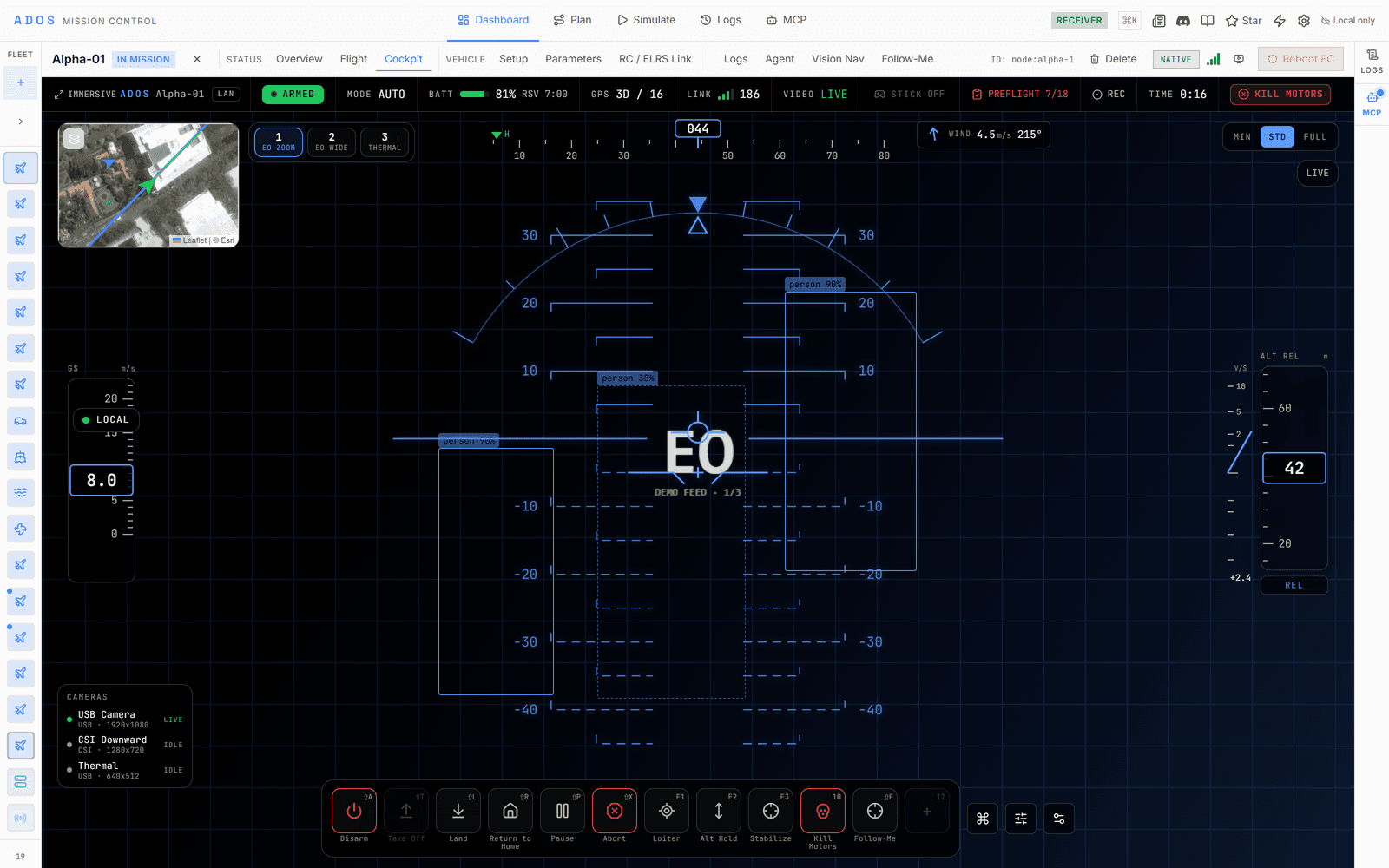
Flying a drone from a ground control station usually means hunting through menus and toolbars while the aircraft is in the air. The Cockpit replaces that with a full-screen piloting view built for the way people actually fly: video front and center, a heads-up overlay for the numbers that matter, and your controls one keypress away.
The Cockpit is shipping now in ADOS Mission Control.
Skills, not menus
The core idea is the Skill. A Skill is a single flight action with one shape, whether it comes built in or from an extension. Arm, Return to Home, Land, and change mode are Skills. So is Follow Me from an extension, or an orbit pattern, or anything an extension author writes. They all live in the same registry and use the same binding system.
Because every behavior is a Skill, they all show up in one place: a bottom Skill Bar with the grammar you already know from games. Each slot has an icon, a hotkey, and a cooldown or charge state when the behavior needs one. You arm a Skill, confirm if it is a destructive action, and it fires.
Bind it your way
Every Skill can be bound to a keyboard shortcut and a gamepad button. Drag a Skill into a hotbar slot, remap a controller button, and save the layout as a loadout. Reserved chords are refused, so a binding cannot accidentally shadow one of the app's own shortcuts. One dispatcher reads the keyboard and the gamepad, so a binding works the same whether you fly with a keyboard or a controller in your hands.
An immersive view
The Cockpit lives on each drone's page in Mission Control, and its immersive mode collapses the dashboard chrome in place so the video fills the view. The layout reuses the pieces Mission Control already trusts: the video canvas, the on-screen HUD, the proximity radar, and the map. You can edit the cockpit layout, drop in a gamepad radial menu, and read cooldowns and charges that reflect the real state of the vehicle, never a guess.
Built to extend
The Cockpit is a platform. An extension can contribute a Skill for the Skill Bar, an overlay drawn on top of the video, and a configuration tab for the drone, all from one manifest. Follow Me is the reference example: it runs its tracking on the vehicle, stops on an uncertain or lost target instead of guessing, and renders its follow settings as native controls.
Open Mission Control, enter the Cockpit, and put your hands on the controls.